DMG
The DMG (Apple Disk Image) format is a common macOS installer file that wraps your App Bundle in a user-friendly installation window.
The installer window includes your app icon and the Applications folder icon, where the user is expected to drag the app icon to the Applications folder icon to install it. It is the most common installation method for macOS applications distributed outside the App Store.
This guide only covers details for distributing apps outside the App Store using the DMG format. See the App Bundle distribution guide for more information on macOS distribution options and configurations. To distribute your macOS app in the App Store, see the App Store distribution guide.
To create an Apple Disk Image for your app you can use the Tauri CLI and
run the tauri build command in a Mac computer:
npm run tauri build -- --bundles dmgyarn tauri build --bundles dmgpnpm tauri build --bundles dmgdeno task tauri build --bundles dmgbun tauri build --bundles dmgcargo tauri build --bundles dmg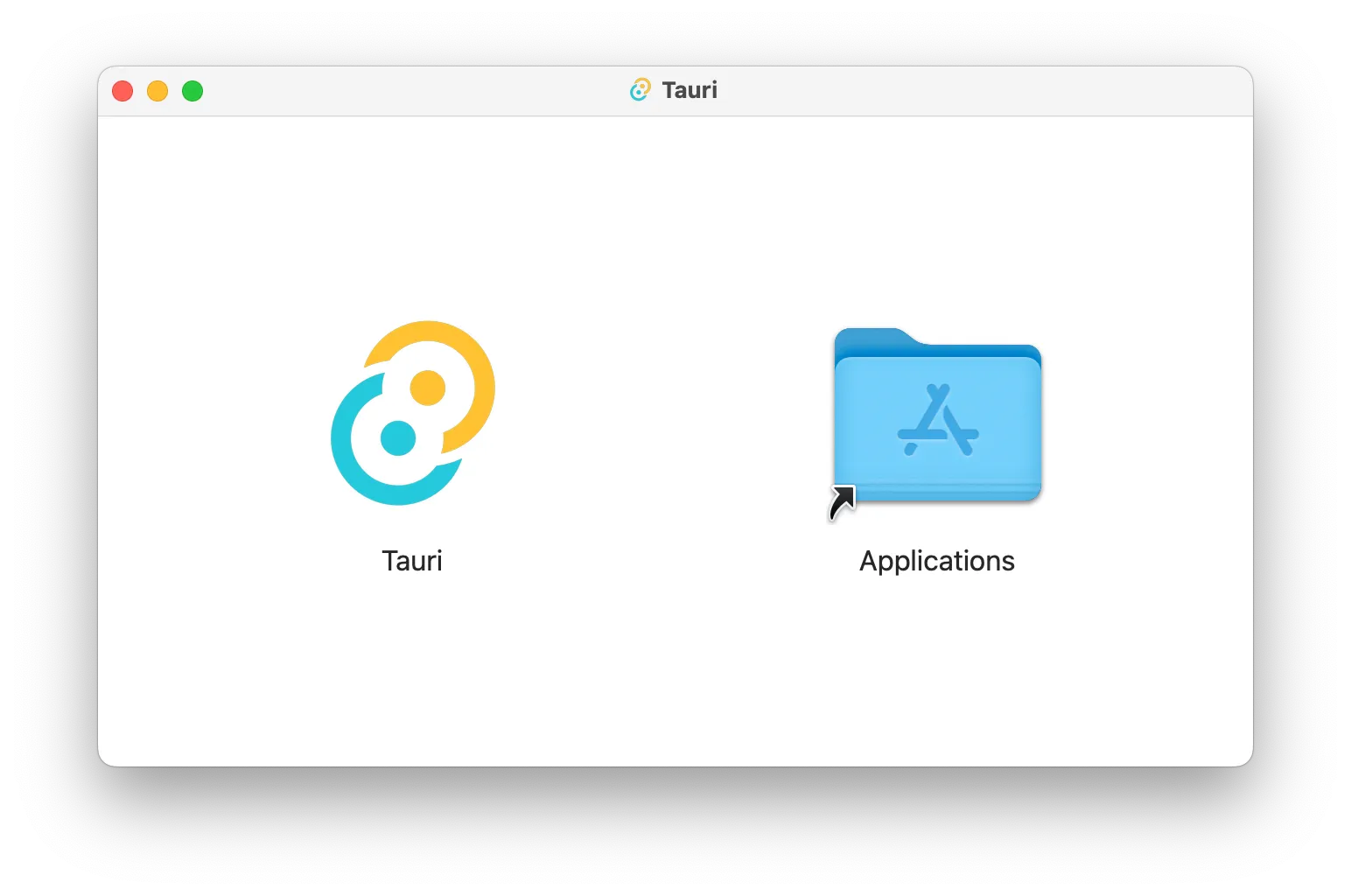
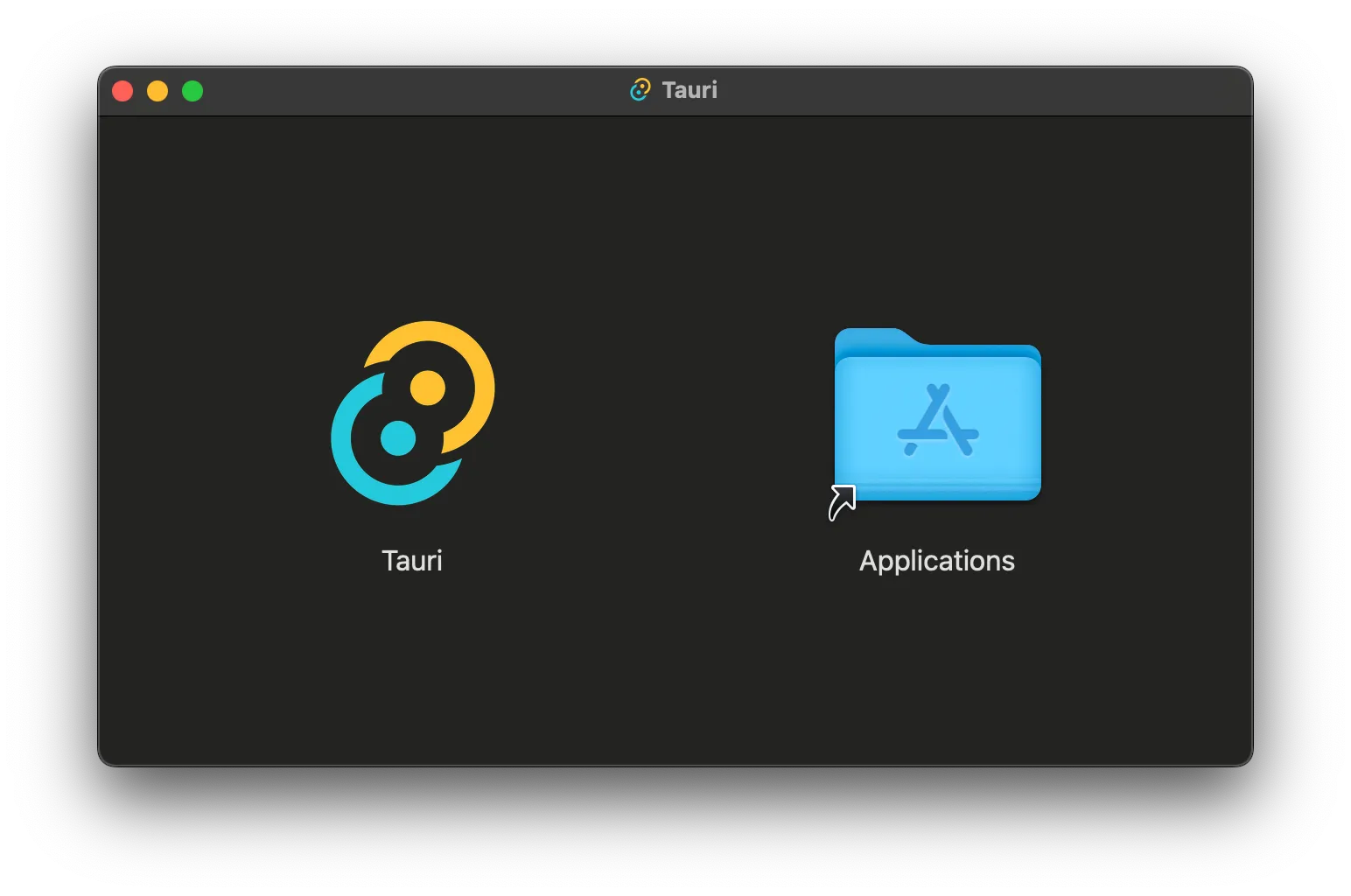
Window background
You can set a custom background image to the DMG installation window
with the [tauri.conf.json > bundle > macOS > dmg > background]
configuration option:
{ "bundle": { "macOS": { "dmg": { "background": "./images/" } } }}tauri.conf.json
For instance your DMG background image can include an arrow to indicate to the user that it must drag the app icon to the Applications folder.
Window size and position
The default window size is 660x400. If you need a different size to fit
your custom background image, set the
[tauri.conf.json > bundle > macOS > dmg > windowSize] configuration:
{ "bundle": { "macOS": { "dmg": { "windowSize": { "width": 800, "height": 600 } } } }}tauri.conf.json
Additionally you can set the initial window position via
[tauri.conf.json > bundle > macOS > dmg > windowPosition]:
{ "bundle": { "macOS": { "dmg": { "windowPosition": { "x": 400, "y": 400 } } } }}tauri.conf.json
Icon position
You can change the app and Applications folder icon position with the appPosition and applicationFolderPosition configuration values respectively:
{ "bundle": { "macOS": { "dmg": { "appPosition": { "x": 180, "y": 220 }, "applicationFolderPosition": { "x": 480, "y": 220 } } } }}tauri.conf.json
Support on Open CollectiveSponsor on GitHub
© 2026 Tauri Contributors. CC-BY / MIT
Last updated Oct 08, 2026