How to work with Herdr
Run Herdr where the work lives. Attach from wherever you are.
Herdr is a background session server plus one or more terminal clients. Panes keep running in the server. Clients attach, detach, and render the session.
Local work
Start Herdr from the project directory:
herdrTerminal window
Herdr starts or attaches to your local background session automatically. You do not manage sockets. Run shells, servers, tests, and agents normally inside panes.
Detach the client with ctrl+b q. Your panes keep running.
Reattach later:
herdrTerminal window
If you want to end the session and stop its panes, stop the server:
herdr server stopTerminal window
Remote work through normal SSH
SSH to the machine that has the code and credentials, then run Herdr there:
ssh you@serverherdrTerminal window
This works like a terminal multiplexer. Your shell is remote. The Herdr
server is remote. The agents and panes run on the remote machine. Detach
with ctrl+b q, disconnect, then SSH back and run herdr again.
Use this path when you already live inside an SSH shell, when you are on a phone or tablet SSH client, or when you want the simplest setup.
Work from your phone
Herdr works on your phone without a mobile app or web dashboard. Install any SSH client, connect to the machine where your agents run, and start Herdr there:
ssh you@serverherdrTerminal window
The same persistent Herdr session opens in your phone terminal. The TUI adapts to narrow screens, so you can inspect agents, switch workspaces, and check panes without leaving SSH.
On iPhone, apps like moshi work well.
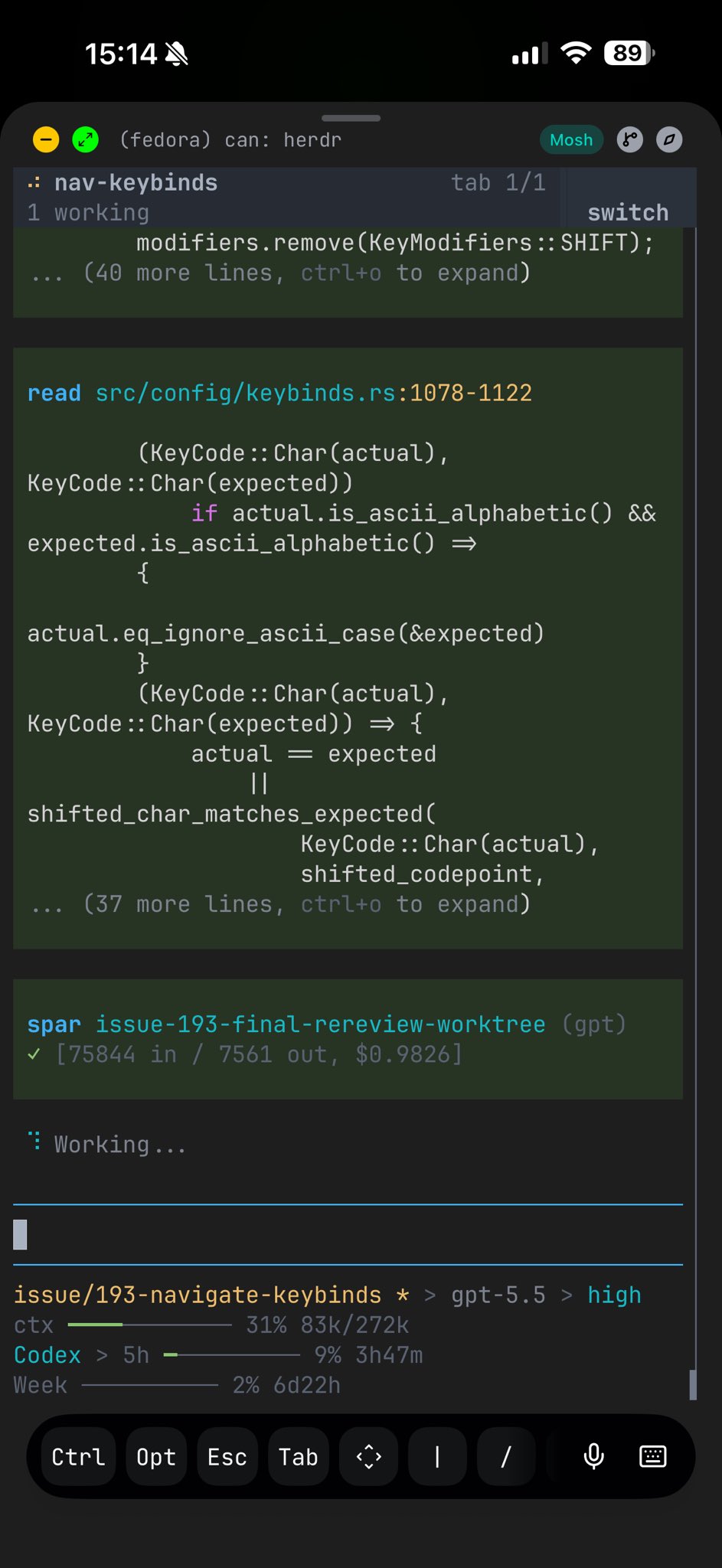
agent session over SSH
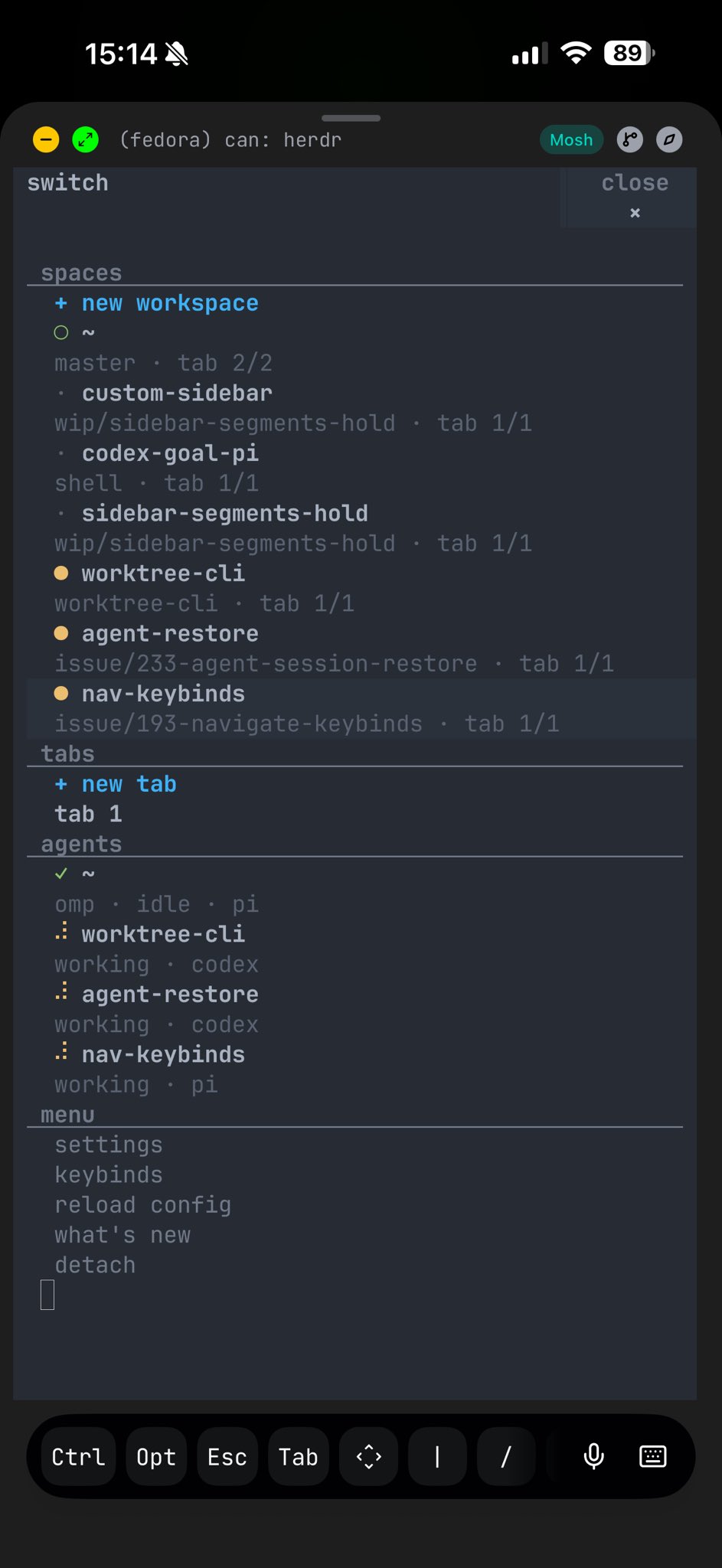
responsive switch menu
Remote work from your local terminal
Attach through SSH without opening a shell first:
herdr --remote workboxherdr --remote ssh://you@server:2222Terminal window
Your local Herdr acts as a thin client. It connects over SSH, starts or attaches to the remote Herdr server, and streams the UI back to your local terminal.
Use this path when you want the remote session to feel local. The client
runs on your machine, so local desktop features such as image clipboard
paste can be bridged to the remote server. If you SSH first and run
herdr on the server, Herdr runs entirely on that server and cannot
read your local desktop clipboard.
For repeat targets, put the host in your SSH config:
Host workbox HostName server.example.com User you Port 2222Then attach with:
herdr --remote workboxTerminal window
Which path to use
Use herdr for local work. Use ssh you@server then herdr when you
want Herdr to behave like tmux on that remote shell or when you are
using a phone SSH client. Use herdr --remote <host> when you want a
local thin client for a remote session, including local clipboard image
paste bridging.
For remote bootstrap details, named remote sessions, custom binaries,
direct terminal attach, and --no-session, see Persistence and remote
access.
Last updated Oct 08, 2026