Markdownkeyboard_arrow_down
content_copyCopy Markdown
open_in_newView Markdown
Resume Command (/resume)
Browse, search, and resume past conversation threads, or recover your last session instantly from the command line.
Overview
Antigravity CLI allows you to maintain multiple ongoing development
threads. The /resume command opens an interactive Session Picker
TUI panel to browse and load your history. You can also resume sessions
directly from your host terminal using command-line flags.
Interactive Session Picker
To open the Session Picker inside the TUI:
- Type
/resume(or aliases/switch,/conversation) in the prompt box. - Press Enter.
/resume1. Navigating and Searching Conversations
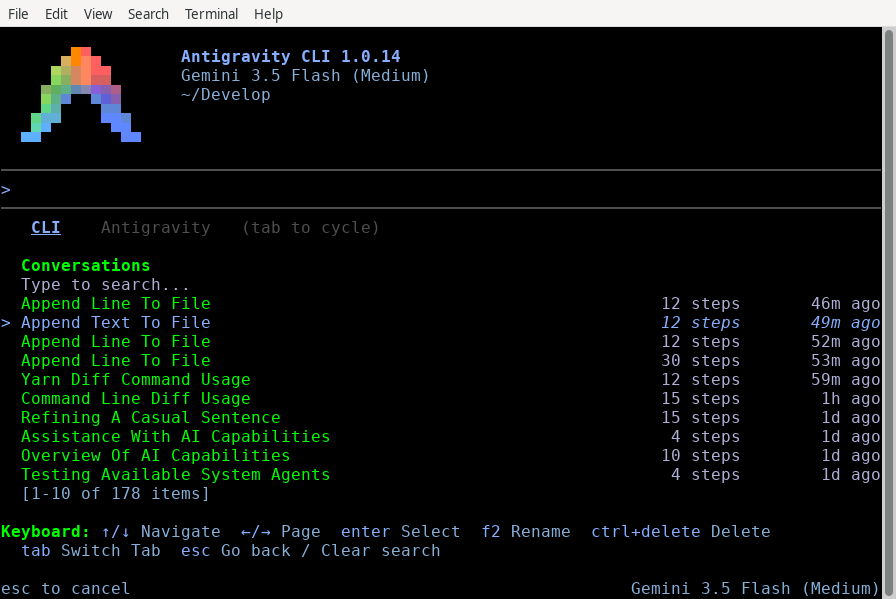
The Session Picker displays a list of past conversations sorted by recency (newest first).
- Search: Start typing to instantly filter conversations by their title, preview text, or unique ID.
- Navigate: Use ↑/↓ to scroll through the filtered list.
- Page: Use ←/→ to page backward and forward through older history blocks.
- Select: Highlight your target session and press Enter to load it.
- Exit: Press Esc to close the picker and return to the active prompt.
2. Renaming a Conversation
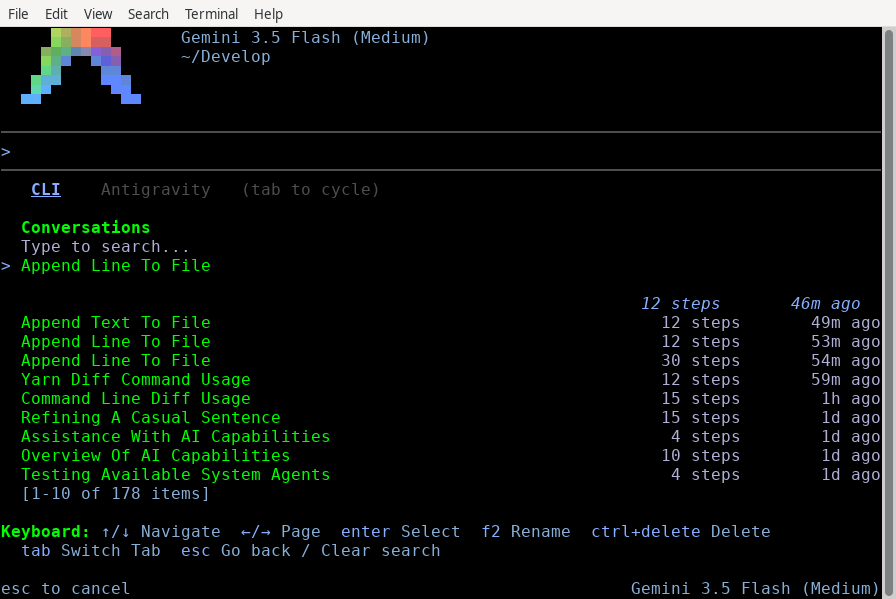
To keep your history organized, you can rename conversations directly within the picker:
- Use ↑/↓ to highlight the conversation you want to rename.
- Press F2. An input field opens at the bottom of the panel, prefilled with the current title.
- Type the new name and press Enter to save, or Esc to cancel.
3. Deleting a Conversation
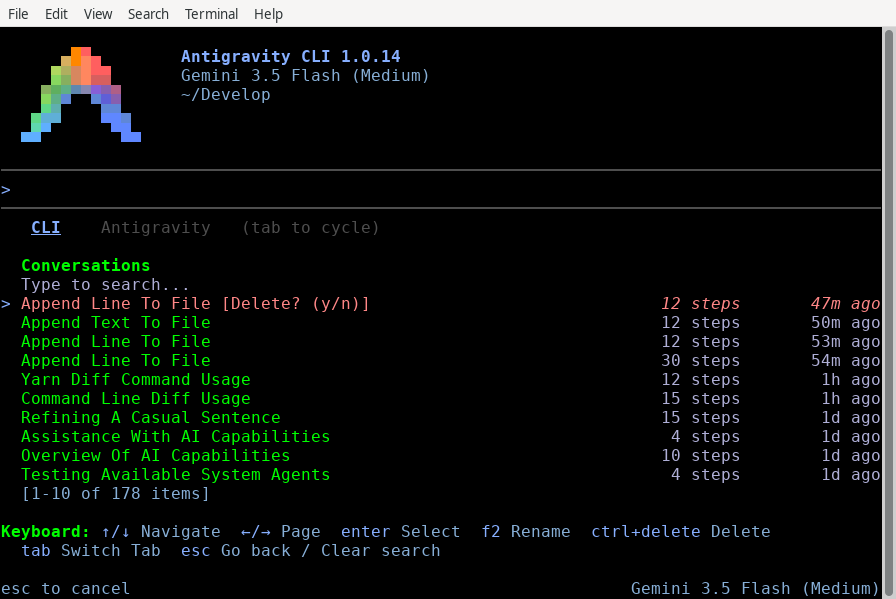
To clean up obsolete threads:
- Highlight the target conversation in the list.
- Press Ctrl + Delete. A confirmation prompt appears.
- Press Enter (or Y) to confirm deletion, or Esc (or N) to cancel.
4. Importing from Antigravity 2.0
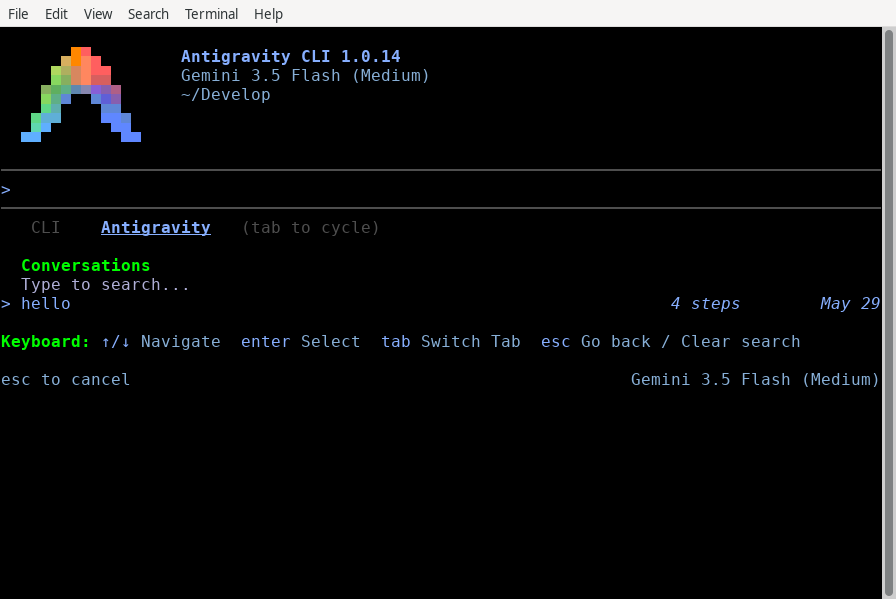
You can import and resume active threads initiated in the Antigravity 2.0 desktop application:
- With the Session Picker open, press Tab to switch from the CLI tab to the Antigravity tab.
- Highlight the desktop conversation you wish to import.
- Press Enter. A confirmation prompt
[Import this? (y/n)]appears. - Press Enter (or Y) to confirm. The CLI clones the history, context, and tool trajectories into your terminal session.
Command-Line Shortcuts
You can bypass the TUI picker and resume sessions directly when
launching agy from your host shell.
Quick Resume Last Session (-c / --continue)
To instantly resume the single most recent conversation associated with your active workspace:
agy -c(Alternative: agy --continue)
Resume Specific Session (--conversation)
To load a specific conversation directly by its unique ID:
agy --conversation <conversation-id>Under the Hood: The Session Cache
When you use the -c / --continue flag, the CLI resolves the target
session using a local workspace-keyed cache.
The Cache File
-
Location:
~/.gemini/antigravity-cli/cache/last_conversations.json -
Format: A JSON map associating absolute workspace directory paths with their most recently active conversation ID:
{
    "/usr/local/google/home/username/Develop/my-project": "a1b2c3d4-e5f6-7890-abcd-ef1234567890",
    "/usr/local/google/home/username/Develop/another-repo": "f9e8d7c6-b5a4-3210-fedc-ba9876543210"
}
Resolution Workflow
- Launch: You run
agy -cfrom/path/to/workspace. - Lookup: The CLI reads
last_conversations.jsonand looks up the key/path/to/workspace. - Verification: If an ID is found, the CLI queries the backend to verify the conversation still exists.
- Load:
- If verified, it loads the session.
- If the conversation was deleted or the key is missing, it starts a fresh session for that workspace.
See also
- Managing Conversations: Learn about
workspace scoping and branching with
/fork. - CLI Reference: See all available slash commands and default keybindings.
- Settings & Keybindings: Configure rendering modes and customize keyboard shortcuts.
Last updated Oct 08, 2026