Markdownkeyboard_arrow_down
content_copyCopy Markdown
open_in_newView Markdown
Code Search Command (/codesearch)
Interactively search the code in your workspace from inside the TUI, without leaving your session or interrupting the agent.
Overview
The /codesearch command opens a fullscreen Code Search panel that
runs a search across your current workspace and shows the matches
grouped by file, with surrounding context and the matched text
highlighted. It is handy for quickly locating a symbol, string, or
pattern and then jumping straight to the file at the matching line.
/codesearch directly queries your workspace and returns results
instantly.
The command has two aliases: /cs and /search.
Running a search
- Type
/codesearchfollowed by your query in the prompt box. - Press Enter.
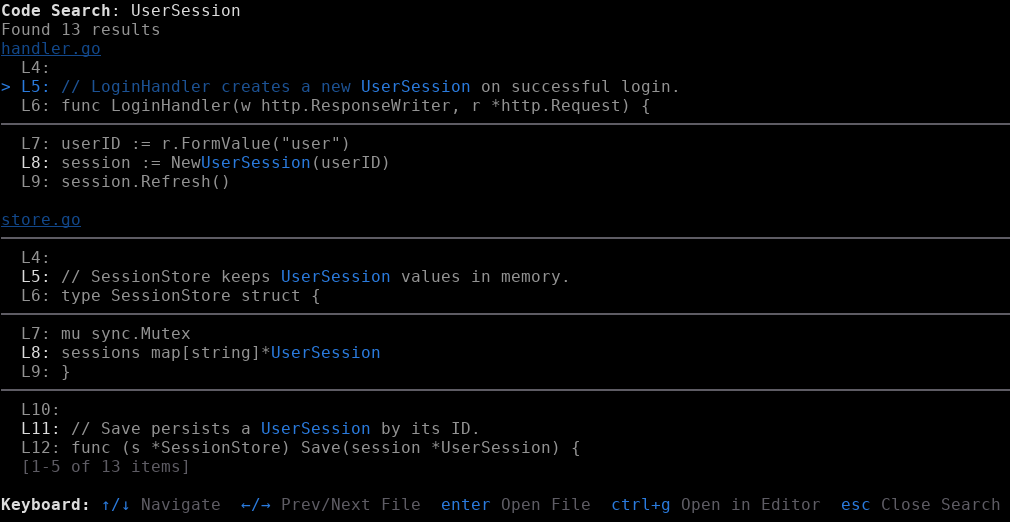
/codesearch UserSessionThe Code Search panel opens with the results grouped by file. The header shows your query and the number of matches, and each match is displayed with one line of context above and below. The matched text is highlighted:
Navigation and controls
The panel is fully keyboard driven:
| Key | Action |
|---|---|
| ↑ / ↓ | Move between individual matches |
| ← / → | Jump to the previous / next file group |
| Enter | Open the highlighted result in the file viewer at the matching line |
| Ctrl + G | Open the highlighted result in your external editor at the matching line |
| Esc | Close the panel and return to the prompt |
Query syntax
By default, queries are interpreted as regular expressions and matching is case-insensitive unless your query contains an uppercase letter (smart case).
Literal (fixed-string) matching
Add -F (or --literal) anywhere in the query to disable regex and
match the text literally. This is useful when your query contains regex
metacharacters such as ., (, or *:
/codesearch -F map[string]*UserSessionFiltering by file path
Restrict a search to certain files with f: (aliases file: and
path:) followed by a glob. Prefix the filter with - to exclude
matching files instead:
/codesearch f:store.go Session/codesearch -f:*_test.go NewUserSession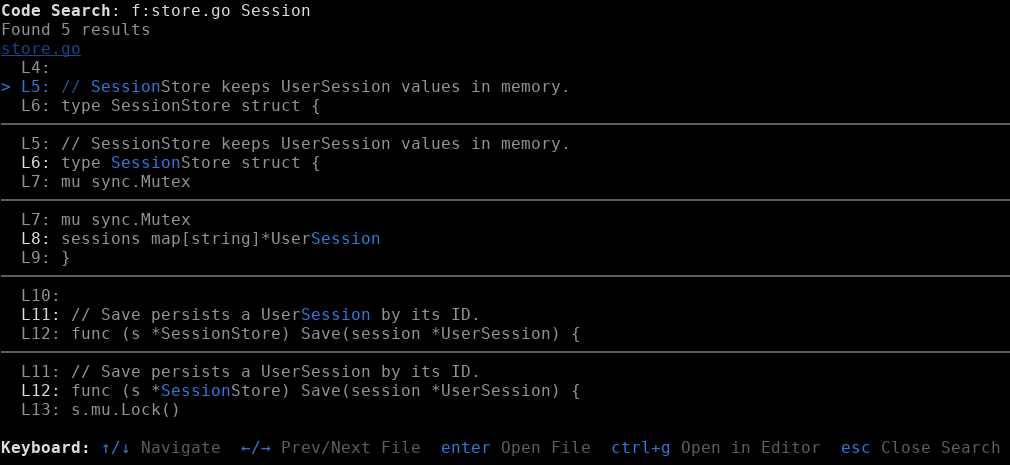
Opening a file and commenting on lines
Code Search is more than a viewer — you can open any result and give the agent precise, line-level feedback without leaving the CLI.
Open a result
Highlight a match with ↑ / ↓ and press Enter to open that file in the built-in file viewer, scrolled to the matching line. Use Ctrl + G instead to open it in your external editor.
Inside the file viewer, the footer shows the available actions:
↑/↓ scroll · pgup/pgdown page · shift+g bottom · g top · c comment · ctrl+g editor · / searchComment on a specific line
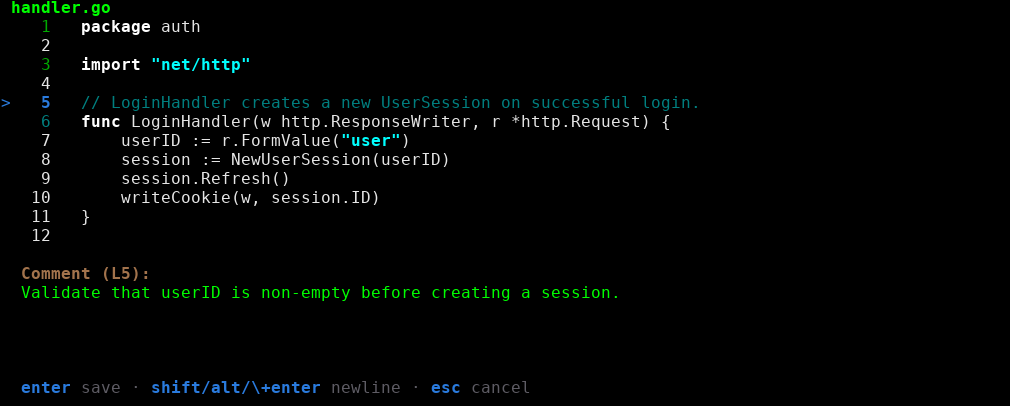
- Move the cursor (↑ / ↓) to the line you want to annotate.
- Press C to open the inline comment editor for that line.
- Type your note. Use Shift + Enter (or Alt + Enter) for a new line, and press Enter to save it.
A saved comment is stored against that line and marked with a 💬 icon in the gutter. Repeat for as many lines as you like. To remove a comment, place the cursor on the line and press the delete key (D).
Send your comments to the agent
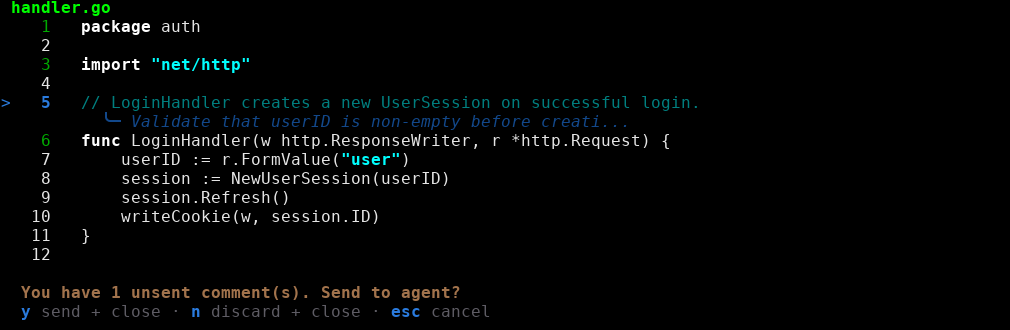
When you leave the file viewer with Esc, any pending comments are collected and the CLI asks whether to send them:
- Y — send + close: your comments are delivered to the agent as your
next message, formatted as
<file>:\<line\>: <comment>so the model knows exactly which lines you mean. - N — discard + close: exit without sending.
- Esc — cancel and keep editing.
This makes Code Search a fast way to find relevant code and hand the agent targeted, line-anchored instructions in a single flow.
Next steps
- CLI Features: Explore the rest of the interactive TUI capabilities.
- Prompting Guide: Learn how to direct the agent to search and edit code for you.
- Resume Command (/resume): Navigate and manage your past conversations.
Last updated Oct 08, 2026