Version: 2.0.0
On this page
Need help with the tutorial? Join our Discord server!
This progressive tutorial is continued from part 1.
Project Structure
Now that we have our client project setup we can configure the module
directory. Regardless of what language you choose, your module will
always go into a spacetimedb directory within your client directory
like this:
blackholio/                      # Unreal project root
├── Binaries/
├── blackholio.sln
├── blackholio.uproject
├── Config/
├── Content/
├── Plugins/
│   └── SpacetimeDbSdk/          # This is where the SpacetimeDB Unreal SDK lives
├── ... rest of Unreal files
└── spacetimedb/                 # This is where the server module lives
Create a Server Module
note
Ensure you have SpacetimeDB version >=1.4.0 installed to enable Unreal
Engine code generation support. You can use spacetime --version to
check your version and you can use spacetime version upgrade to
install the latest version.
If you have not already installed the spacetime CLI, check out our
Getting Started guide for instructions on how to install.
In the same directory that contains your blackholio project, run the
following command to initialize the SpacetimeDB server module project
with your desired language:
warning
The blackholio directory specified here is the same blackholio
directory you created during part 1.
- C#
- Rust
- C++
Run the following command to initialize the SpacetimeDB server module project with C# as the language:
spacetime init --lang csharp --server-only --project-path . blackholioThis command creates a new folder named spacetimedb inside of your
Unreal project blackholio directory and sets up the SpacetimeDB server
project with C# as the programming language.
Run the following command to initialize the SpacetimeDB server module project with Rust as the language:
spacetime init --lang rust --server-only --project-path . blackholioThis command creates a new folder named spacetimedb inside of your
Unreal project blackholio directory and sets up the SpacetimeDB server
project with Rust as the programming language.
Run the following command to initialize the SpacetimeDB server module project with C++ as the language:
spacetime init --lang cpp --server-only --project-path . blackholioThis command creates a new folder named spacetimedb inside of your
Unreal project blackholio directory and sets up the SpacetimeDB server
project with Rust as the programming language.
SpacetimeDB Tables
- C#
- Rust
- C++
In this section we’ll be making some edits to the file
blackholio/spacetimedb/Lib.cs. We recommend you open up this file in
an IDE like VSCode or Rider.
Important: Open the blackholio/spacetimedb/Lib.cs file and delete
its contents. We will be writing it from scratch here.
In this section we’ll be making some edits to the file
blackholio/spacetimedb/src/lib.rs. We recommend you open up this file
in an IDE like VSCode or RustRover.
Important: Open the blackholio/spacetimedb/src/lib.rs file and
delete its contents. We will be writing it from scratch here.
In this section we’ll be making some edits to the file
blackholio/spacetimedb/src/lib.rs. We recommend you open up this file
in an IDE like VSCode or Rider.
Important: Open the blackholio/spacetimedb/src/lib.cpp file and
delete its contents. We will be writing it from scratch here.
First we need to add some imports at the top of the file. Some will remain unused for now.
- C#
- Rust
- C++
Copy and paste into Lib.cs:
using SpacetimeDB;

public static partial class Module
{

}
Copy and paste into lib.rs:
use std::time::Duration;
use spacetimedb::{rand::Rng, Identity, SpacetimeType, ReducerContext, ScheduleAt, Table, Timestamp};
Copy and paste into lib.cpp:
#include "spacetimedb.h"

using namespace SpacetimeDB;
We are going to start by defining a SpacetimeDB table. A table in SpacetimeDB is a relational database table which stores rows, similar to something you might find in SQL. SpacetimeDB tables differ from normal relational database tables in that they are stored fully in memory, are blazing fast to access, and are defined in your module code, rather than in SQL.
- C#
- Rust
- C++
Each row in a SpacetimeDB table is associated with a struct type in
C#.
Let’s start by defining the Config table. This is a simple table which
will store some metadata about our game’s state. Add the following code
inside the Module class in Lib.cs.
// We're using this table as a singleton, so in this table
// there will only be one element where the `id` is 0.
[Table(Accessor = "config", Public = true)]
public partial struct Config
{
    [PrimaryKey]
    public int id;
    public long world_size;
}
Let’s break down this code. This defines a normal C# struct with two
fields: id and world_size. We have added the
[Table(Accessor = "config", Public = true)] attribute the struct. This
attribute signals to SpacetimeDB that it should create a new SpacetimeDB
table with the row type defined by the Config type’s fields.
Although we’re using
lower_snake_casefor our column names to have consistent column names across languages in this tutorial, you can also usecamelCaseorPascalCaseif you prefer. See #2168 for more information.
The Table attribute takes two parameters, an Accessor which is the
name of the table and what you will use to query the table in SQL, and a
Public visibility modifier which ensures that the rows of this table
are visible to everyone.
The [PrimaryKey] attribute, specifies that the id field should be
used as the primary key of the table.
Each row in a SpacetimeDB table is associated with a struct type in
Rust.
Let’s start by defining the Config table. This is a simple table which
will store some metadata about our game’s state. Add the following code
to lib.rs.
// We're using this table as a singleton, so in this table
// there will only be one element where the `id` is 0.
#[spacetimedb::table(accessor = config, public)]
pub struct Config {
    #[primary_key]
    pub id: i32,
    pub world_size: i64,
}
Let’s break down this code. This defines a normal Rust struct with two
fields: id and world_size. We have decorated the struct with the
spacetimedb::table macro. This procedural Rust macro signals to
SpacetimeDB that it should create a new SpacetimeDB table with the row
type defined by the Config type’s fields.
The spacetimedb::table macro takes two parameters, an accessor which
is the name of the table and what you will use to query the table in
SQL, and a public visibility modifier which ensures that the rows of
this table are visible to everyone.
The #[primary_key] attribute, specifies that the id field should be
used as the primary key of the table.
Each row in a SpacetimeDB table is associated with a struct type in
C++.
Let’s start by defining the Config table. This is a simple table which
will store some metadata about our game’s state. Add the following code
to lib.cpp.
// We're using this table as a singleton, so in this table
// there will only be one element where the `id` is 0.
struct Config {
    int32_t id;
    int64_t world_size;
};
SPACETIMEDB_STRUCT(Config, id, world_size);
SPACETIMEDB_TABLE(Config, config, Public);
FIELD_PrimaryKey(config, id);
Let’s break down this code. This defines a normal C++ struct with two
fields: id and world_size. We use the SPACETIMEDB_STRUCT macro to
register the struct for serialization, listing all field names. Then
SPACETIMEDB_TABLE registers it as a table with the name config and
Public visibility.
The SPACETIMEDB_TABLE macro takes three parameters: the struct type,
the table name (which you’ll use to access the table in code), and a
visibility modifier (Public or Private) which determines whether
rows are synced to clients.
The FIELD_PrimaryKey macro specifies that the id field should be
used as the primary key of the table.
note
The primary key of a row defines the “identity” of the row. A change to a row which doesn’t modify the primary key is considered an update, but if you change the primary key, then you have deleted the old row and inserted a new one.
Learn more about defining tables, including indexes, constraints, and column types, in our Tables documentation.
Creating Entities
- C#
- Rust
- C++
Next, we’re going to define a new SpacetimeType called DbVector2
which we’re going to use to store positions. The difference between a
[SpacetimeDB.Type] and a [SpacetimeDB.Table] is that tables actually
store data, whereas the deriving SpacetimeType just allows you to
create a new column of that type in a SpacetimeDB table. Therefore,
DbVector2 is only a type, and does not define a table.
Append to the bottom of Lib.cs:
// This allows us to store 2D points in tables.
[SpacetimeDB.Type]
public partial struct DbVector2
{
    public float x;
    public float y;

    public DbVector2(float x, float y)
    {
        this.x = x;
        this.y = y;
    }
}
Let’s create a few tables to represent entities in our game by adding
the following to the end of the Module class.
[Table(Accessor = "entity", Public = true)]
public partial struct Entity
{
 [PrimaryKey, AutoInc]
 public int entity_id;
 public DbVector2 position;
 public int mass;
}

[Table(Accessor = "circle", Public = true)]
public partial struct Circle
{
    [PrimaryKey]
    public int entity_id;
    [SpacetimeDB.Index.BTree]
    public int player_id;
    public DbVector2 direction;
    public float speed;
    public SpacetimeDB.Timestamp last_split_time;
}

[Table(Accessor = "food", Public = true)]
public partial struct Food
{
 [PrimaryKey]
 public int entity_id;
}
Next, we’re going to define a new SpacetimeType called DbVector2
which we’re going to use to store positions. The difference between a
#[derive(SpacetimeType)] and a #[spacetimedb(table)] is that tables
actually store data, whereas the deriving SpacetimeType just allows
you to create a new column of that type in a SpacetimeDB table.
Therefore, DbVector2 is only a type, and does not define a table.
Append to the bottom of lib.rs:
// This allows us to store 2D points in tables.
#[derive(SpacetimeType, Clone, Debug)]
pub struct DbVector2 {
    pub x: f32,
    pub y: f32,
}
Let’s create a few tables to represent entities in our game.
#[spacetimedb::table(accessor = entity, public)]
#[derive(Debug, Clone)]
pub struct Entity {
    // The `auto_inc` attribute indicates to SpacetimeDB that
    // this value should be determined by SpacetimeDB on insert.
    #[auto_inc]
    #[primary_key]
    pub entity_id: i32,
    pub position: DbVector2,
    pub mass: i32,
}

#[spacetimedb::table(accessor = circle, public)]
pub struct Circle {
    #[primary_key]
    pub entity_id: i32,
    #[index(btree)]
    pub player_id: i32,
    pub direction: DbVector2,
    pub speed: f32,
    pub last_split_time: Timestamp,
}

#[spacetimedb::table(accessor = food, public)]
pub struct Food {
    #[primary_key]
    pub entity_id: i32,
}
Next, we’re going to define a new SpacetimeType called DbVector2
which we’re going to use to store positions. The difference between a
regular struct registered with SPACETIMEDB_STRUCT and one registered
with SPACETIMEDB_TABLE is that tables actually store data, whereas
registering a struct alone just allows you to use it as a column type in
a SpacetimeDB table. Therefore, DbVector2 is only a type, and does not
define a table.
Append to the bottom of lib.cpp:
// This allows us to store 2D points in tables.
struct DbVector2 {
    float x;
    float y;
};
SPACETIMEDB_STRUCT(DbVector2, x, y);
Let’s create a few tables to represent entities in our game.
struct Entity {
    // The `FIELD_PrimaryKeyAutoInc` constraint indicates to SpacetimeDB that
    // this value should be determined by SpacetimeDB on insert.
    int32_t entity_id;
    DbVector2 position;
    int32_t mass;
};
SPACETIMEDB_STRUCT(Entity, entity_id, position, mass);
SPACETIMEDB_TABLE(Entity, entity, Public);
FIELD_PrimaryKeyAutoInc(entity, entity_id);

struct Circle {
    int32_t entity_id;
    int32_t player_id;
    DbVector2 direction;
    float speed;
    Timestamp last_split_time;
};
SPACETIMEDB_STRUCT(Circle, entity_id, player_id, direction, speed, last_split_time);
SPACETIMEDB_TABLE(Circle, circle, Public);
FIELD_PrimaryKey(circle, entity_id);
FIELD_Index(circle, player_id);

struct Food {
    int32_t entity_id;
};
SPACETIMEDB_STRUCT(Food, entity_id);
SPACETIMEDB_TABLE(Food, food, Public);
FIELD_PrimaryKey(food, entity_id);
The first table we defined is the entity table. An entity represents
an object in our game world. We have decided, for convenience, that all
entities in our game should share some common fields, namely position
and mass.
We can create different types of entities with additional data by
creating new tables with additional fields that have an entity_id
which references a row in the entity table.
We’ve created two types of entities in our game world: Foods and
Circles. Food does not have any additional fields beyond the
attributes in the entity table, so the food table simply represents
the set of entity_ids that we want to recognize as food.
The Circle table, however, represents an entity that is controlled by
a player. We’ve added a few additional fields to a Circle like
player_id so that we know which player that circle belongs to.
Representing Players
Next, let’s create a table to store our player data.
- C#
- Rust
- C++
[Table(Accessor = "player", Public = true)]
public partial struct Player
{
 [PrimaryKey]
 public Identity identity;
 [Unique, AutoInc]
 public int player_id;
 public string name;
}
There are a few new concepts we should touch on. First of all, we are
using the [Unique] attribute on the player_id field. This attribute
adds a constraint to the table that ensures that only one row in the
player table has a particular player_id. We are also using the
[AutoInc] attribute on the player_id field, which indicates “this
field should get automatically assigned an auto-incremented value”.
#[spacetimedb::table(accessor = player, public)]
#[derive(Debug, Clone)]
pub struct Player {
    #[primary_key]
    identity: Identity,
    #[unique]
    #[auto_inc]
    player_id: i32,
    name: String,
}
There’s a few new concepts we should touch on. First of all, we are
using the #[unique] attribute on the player_id field. This attribute
adds a constraint to the table that ensures that only one row in the
player table has a particular player_id.
struct Player {
    Identity identity;
    int32_t player_id;
    std::string name;
};
SPACETIMEDB_STRUCT(Player, identity, player_id, name);
SPACETIMEDB_TABLE(Player, player, Public);
FIELD_PrimaryKey(player, identity);
FIELD_UniqueAutoInc(player, player_id);
There’s a few new concepts we should touch on. First of all, we are
using the FIELD_UniqueAutoInc macro on the player_id field. This
macro combines two constraints: it ensures that only one row in the
player table has a particular player_id, and it indicates that this
field should get automatically assigned an auto-incremented value.
We also have an identity field which uses the Identity type. The
Identity type is an identifier that SpacetimeDB uses to uniquely
assign and authenticate SpacetimeDB users.
Writing a Reducer
Next, we write our very first reducer. A reducer is a module function which can be called by clients. Let’s write a simple debug reducer to see how they work.
- C#
- Rust
- C++
Add this function to the Module class in Lib.cs:
[Reducer]
public static void Debug(ReducerContext ctx)
{
    Log.Info($"This reducer was called by {ctx.Sender}");
}
#[spacetimedb::reducer]
pub fn debug(ctx: &ReducerContext) -> Result<(), String> {
log::debug!("This reducer was called by {}.", ctx.sender());
Ok(())
}SPACETIMEDB_REDUCER(debug, ReducerContext ctx) {
LOG_INFO("This reducer was called by " + ctx.sender().to_string());
return Ok();
}This reducer doesn’t update any tables, it just prints out the
Identity of the client that called it.
SpacetimeDB Reducers
“Reducer” is a term coined by Clockwork Labs that refers to a function which when executed “reduces” a set of inserts and deletes into the database state. The term derives from functional programming and is closely related to similarly named concepts in other frameworks like React Redux. Reducers can be called remotely using the CLI, client SDK or can be scheduled to be called at some future time from another reducer call.
All reducers execute transactionally and atomically, meaning that from within the reducer it will appear as though all changes are being applied to the database immediately, however from the outside changes made in a reducer will only be applied to the database once the reducer completes successfully. If you return an error from a reducer or panic within a reducer, all changes made to the database will be rolled back, as if the function had never been called. If you’re unfamiliar with atomic transactions, it may not be obvious yet just how useful and important this feature is, but once you build a somewhat complex application it will become clear just how invaluable this feature is.
Publishing the Module
Now that we have some basic functionality, let’s publish the module to SpacetimeDB and call our debug reducer.
In a new terminal window, run a local version of SpacetimeDB with the command:
spacetime startThis following log output indicates that SpacetimeDB is successfully running on your machine.
Starting SpacetimeDB listening on 127.0.0.1:3000Now that SpacetimeDB is running we can publish our module to the
SpacetimeDB host. In a separate terminal window, navigate to the
blackholio directory.
If you are not already logged in to the spacetime CLI, run the
spacetime login command to log in to your SpacetimeDB website account.
Once you are logged in, run
spacetime publish --server local blackholio. This will publish our
Blackholio server logic to SpacetimeDB.
If the publish completed successfully, you will see something like the following in the logs:
Build finished successfully.
Uploading to local => http://127.0.0.1:3000
Publishing module...
Created new database with name: blackholio, identity: c200d2c69b4524292b91822afac8ab016c15968ac993c28711f68c6bc40b89d5
If you sign into
spacetime loginvia GitHub, the token you get will be issued byauth.spacetimedb.com. This will also ensure that you can recover your identity in case you lose it. On the other hand, if you dospacetime login --server-issued-login local, you will get an identity which is issued directly by your local server. Do note, however, that--server-issued-logintokens are not recoverable if lost, and are only recognized by the server that issued them.
- C#
- Rust
- C++
Next, use the spacetime command to call our newly defined Debug
reducer:
spacetime call --server local blackholio debugspacetime call --server local blackholio debugspacetime call --server local blackholio debugIf the call completed successfully, that command will have no output, but we can see the debug logs by running:
spacetime logs --server local blackholioYou should see something like the following output:
2025-01-09T16:08:38.144299Z  INFO: spacetimedb: Creating table `circle`
2025-01-09T16:08:38.144438Z  INFO: spacetimedb: Creating table `config`
2025-01-09T16:08:38.144451Z  INFO: spacetimedb: Creating table `entity`
2025-01-09T16:08:38.144470Z  INFO: spacetimedb: Creating table `food`
2025-01-09T16:08:38.144479Z  INFO: spacetimedb: Creating table `player`
2025-01-09T16:08:38.144841Z  INFO: spacetimedb: Database initialized
2025-01-09T16:08:47.306823Z  INFO: src/lib.rs:68: This reducer was called by c200e1a6494dbeeb0bbf49590b8778abf94fae4ea26faf9769c9a8d69a3ec348.
Connecting our Client
- C#
- Rust
- C++
Next let’s connect our client to our database. Let’s start by modifying
our Debug reducer. Rename the reducer to be called Connect and add
ReducerKind.ClientConnected in parentheses after
SpacetimeDB.Reducer. The end result should look like this:
[Reducer(ReducerKind.ClientConnected)]
public static void Connect(ReducerContext ctx)
{
    Log.Info($"{ctx.Sender} just connected.");
}
The ReducerKind.ClientConnected argument to the SpacetimeDB.Reducer
attribute indicates to SpacetimeDB that this is a special reducer. This
reducer is only ever called by SpacetimeDB itself when a client connects
to your database.
SpacetimeDB gives you the ability to define custom reducers that automatically trigger when certain events occur.
ReducerKind.Init- Called the first time you publish your module and anytime you clear the database withspacetime publish --server local \<name\> --delete-data.ReducerKind.ClientConnected- Called when a user connects to the SpacetimeDB database. Their identity can be found in theSendervalue of theReducerContext.ReducerKind.ClientDisconnected- Called when a user disconnects from the SpacetimeDB database.
Next let’s connect our client to our database. Let’s start by modifying
our debug reducer. Rename the reducer to be called connect and add
client_connected in parentheses after spacetimedb::reducer. The end
result should look like this:
#[spacetimedb::reducer(client_connected)]
pub fn connect(ctx: &ReducerContext) -> Result<(), String> {
    log::debug!("{} just connected.", ctx.sender());
    Ok(())
}
The client_connected argument to the spacetimedb::reducer macro
indicates to SpacetimeDB that this is a special reducer. This reducer is
only ever called by SpacetimeDB itself when a client connects to your
database.
SpacetimeDB gives you the ability to define custom reducers that automatically trigger when certain events occur.
init- Called the first time you publish your module and anytime you clear the database withspacetime publish --server local \<name\> --delete-data.client_connected- Called when a user connects to the SpacetimeDB database. Their identity can be found in thesendervalue of theReducerContext.client_disconnected- Called when a user disconnects from the SpacetimeDB database.
Next let’s connect our client to our database. Let’s start by modifying
our debug reducer. Rename the reducer to be called connect and
change SPACETIMEDB_REDUCER to SPACETIMEDB_CLIENT_CONNECTED. The end
result should look like this:
SPACETIMEDB_CLIENT_CONNECTED(connect, ReducerContext ctx) {
    LOG_INFO(ctx.sender().to_string() + " just connected.");
    return Ok();
}
The SPACETIMEDB_CLIENT_CONNECTED macro indicates to SpacetimeDB that
this is a special reducer. This reducer is only ever called by
SpacetimeDB itself when a client connects to your database.
SpacetimeDB gives you the ability to define custom reducers that automatically trigger when certain events occur.
SPACETIMEDB_INIT- Called the first time you publish your module and anytime you clear the database withspacetime publish --server local \<name\> --delete-data.SPACETIMEDB_CLIENT_CONNECTED- Called when a user connects to the SpacetimeDB database. Their identity can be found in thesendervalue of theReducerContext.SPACETIMEDB_CLIENT_DISCONNECTED- Called when a user disconnects from the SpacetimeDB database.
Publish your module again by running:
spacetime publish --server local blackholioGenerating the Client
The spacetime CLI has built in functionality to let us generate Unreal
C++ types that correspond to our tables, types, and reducers that we can
use from our Unreal client.
- C#
- Rust
- C++
Let’s generate our types for our module. In the blackholio directory
run the following command:
Let’s generate our types for our module. In the blackholio directory
run the following command:
Let’s generate our types for our module. In the blackholio directory
run the following command:
spacetime generate --lang unrealcpp --uproject-dir .. --unreal-module-name blackholioThis will generate a set of files in the
blackholio/Source/blackholio/Private/ModuleBindings and
blackholio/Source/blackholio/Public/ModuleBindings directories which
contain the code generated types and reducer functions that are defined
in your module, but usable on the client.
note
--uproject-dir is the path to the Unreal project directory that
contains the .uproject file. --unreal-module-name is the name of the
Unreal module, which in most projects is the name of the project, in
this case blackholio.
warning
After generating external code with spacetime generate it is highly
recommended you restart the Unreal Editor, it can also help to run the
Generate project files against the .uproject file.
├── Reducers
├── Tables
│   ├── CircleTable.g.h
│   ├── ConfigTable.g.h
│   ├── EntityTable.g.h
│   ├── FoodTable.g.h
│   └── PlayerTable.g.h
├── Types
│   ├── CircleType.g.h
│   ├── ConfigType.g.h
│   ├── DbVector2Type.g.h
│   ├── EntityType.g.h
│   ├── FoodType.g.h
│   └── PlayerType.g.h
└── ReducerBase.g.h
└── SpacetimeDBClient.g.h
This will also generate a file in the
blackholio/Source/blackholio/Private/ModuleBindings/SpacetimeDBClient.g.h
directory with a type aware UDbConnection class. We will use this
class to connect to your database from Unreal.
Connecting to the Database
Update blackholio.Build.cs to include the SpacetimeDbSdk. Add
SpacetimeDbSdk and Paper2D to PublicDependencyModuleNames, and
confirm that PrivateDependencyModuleNames includes the following
modules for current and future needs:
        PublicDependencyModuleNames.AddRange(new string[]
        {
            "Core",
            "CoreUObject",
            "Engine",
            "InputCore",
            "EnhancedInput",
            "SpacetimeDbSdk",
            "Paper2D"
        });

        PrivateDependencyModuleNames.AddRange(new string[]
        {
            "UMG",
            "SlateCore",
            "Slate"
});- C++
- Blueprint
Update GameManager.h as follows to set up the Unreal client connection
to the server:
#pragma once

#include "CoreMinimal.h"
#include "GameFramework/Actor.h"
#include "ModuleBindings/SpacetimeDBClient.g.h"
#include "GameManager.generated.h"

class UDbConnection;

UCLASS()
class BLACKHOLIO_API AGameManager : public AActor
{
    GENERATED_BODY()

public:
    AGameManager();
    static AGameManager* Instance;

    UPROPERTY(EditAnywhere, Category="BH|Connection")
    FString ServerUri = TEXT("127.0.0.1:3000");
    UPROPERTY(EditAnywhere, Category="BH|Connection")
    FString DatabaseName = TEXT("blackholio");
    UPROPERTY(EditAnywhere, Category="BH|Connection")
    FString TokenFilePath = TEXT(".spacetime_blackholio");

    UPROPERTY(BlueprintReadOnly, Category="BH|Connection")
    FSpacetimeDBIdentity LocalIdentity;
    UPROPERTY(BlueprintReadOnly, Category="BH|Connection")
    UDbConnection* Conn = nullptr;

    UFUNCTION(BlueprintPure, Category="BH|Connection")
    bool IsConnected() const
    {
        return Conn != nullptr && Conn->IsActive();
    }

    UFUNCTION(BlueprintCallable, Category="BH|Connection")
    void Disconnect()
    {
        if (Conn != nullptr)
        {
            Conn->Disconnect();
            Conn = nullptr;
        }
    }

protected:
    virtual void BeginPlay() override;
    virtual void EndPlay(const EEndPlayReason::Type EndPlayReason) override;

public:
    // Called every frame
    virtual void Tick(float DeltaTime) override;

private:
    UFUNCTION()
    void HandleConnect(UDbConnection* InConn, FSpacetimeDBIdentity Identity, const FString& Token);
    UFUNCTION()
    void HandleConnectError(const FString& Error);
    UFUNCTION()
    void HandleDisconnect(UDbConnection* InConn, const FString& Error);
    UFUNCTION()
    void HandleSubscriptionApplied(FSubscriptionEventContext& Context);
};
Next, update GameManager.cpp to finalize the setup:
#include "GameManager.h"
#include "Connection/Credentials.h"

AGameManager* AGameManager::Instance = nullptr;

AGameManager::AGameManager()
{
    PrimaryActorTick.bCanEverTick = true;
    PrimaryActorTick.bStartWithTickEnabled = true;
}

void AGameManager::BeginPlay()
{
    Super::BeginPlay();
    Instance = this;

    FOnConnectDelegate ConnectDelegate;
    BIND_DELEGATE_SAFE(ConnectDelegate, this, AGameManager, HandleConnect);
    FOnDisconnectDelegate DisconnectDelegate;
    BIND_DELEGATE_SAFE(DisconnectDelegate, this, AGameManager, HandleDisconnect);
    FOnConnectErrorDelegate ConnectErrorDelegate;
    BIND_DELEGATE_SAFE(ConnectErrorDelegate, this, AGameManager, HandleConnectError);

    UCredentials::Init(*TokenFilePath);
    FString Token = UCredentials::LoadToken();

    UDbConnectionBuilder* Builder = UDbConnection::Builder()
                                                ->WithUri(ServerUri)
                                                ->WithDatabaseName(DatabaseName)
                                                ->OnConnect(ConnectDelegate)
                                                ->OnDisconnect(DisconnectDelegate)
                                                ->OnConnectError(ConnectErrorDelegate);

    if (!Token.IsEmpty())
    {
        Builder->WithToken(Token);
    }

    Conn = Builder->Build();
}

void AGameManager::EndPlay(const EEndPlayReason::Type EndPlayReason)
{
    Disconnect();
    if (Instance == this)
    {
        Instance = nullptr;
    }
    Super::EndPlay(EndPlayReason);
}

void AGameManager::Tick(float DeltaTime)
{
    if (IsConnected())
    {
        Conn->FrameTick();
    }
}

void AGameManager::HandleConnect(UDbConnection* InConn, FSpacetimeDBIdentity Identity, const FString& Token)
{
    UE_LOG(LogTemp, Log, TEXT("Connected."));
    UCredentials::SaveToken(Token);
    LocalIdentity = Identity;

    FOnSubscriptionApplied AppliedDelegate;
    BIND_DELEGATE_SAFE(AppliedDelegate, this, AGameManager, HandleSubscriptionApplied);
    Conn->SubscriptionBuilder()
        ->OnApplied(AppliedDelegate)
        ->SubscribeToAllTables();
}

void AGameManager::HandleConnectError(const FString& Error)
{
    UE_LOG(LogTemp, Log, TEXT("Connection error %s"), *Error);
}

void AGameManager::HandleDisconnect(UDbConnection* InConn, const FString& Error)
{
    UE_LOG(LogTemp, Log, TEXT("Disconnected."));
    if (!Error.IsEmpty())
    {
        UE_LOG(LogTemp, Log, TEXT("Disconnect error %s"), *Error);
    }
}

void AGameManager::HandleSubscriptionApplied(FSubscriptionEventContext& Context)
{
    UE_LOG(LogTemp, Log, TEXT("Subscription applied!"));
}
Here we configure the connection to the database, by passing it some
callbacks in addition to providing the ServerUri and DatabaseName to
the connection. When the client connects, the SpacetimeDB SDK will call
the HandleConnect method, allowing us to start up the game.
In our HandleConnect callback we build a subscription and are calling
Subscribe and subscribing to all data in the database. This will cause
SpacetimeDB to synchronize the state of all your tables with your Unreal
client’s SpacetimeDB SDK’s “client cache”. You can also subscribe to
specific tables using SQL syntax, e.g. SELECT * FROM my_table. Our
SQL documentation enumerates the operations that
are accepted in our SQL syntax.
note
Close down, rebuild, and relaunch the project to update the plugin and generated code references.
To start off edit BP_GameMode to provide easy access to the
BP_GameManager.
Open BP_GameMode and update to the following:
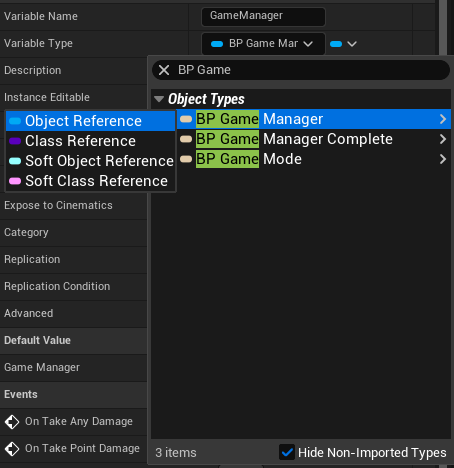
- Add a Variable
- Change Variable Name to
GameManager - Change Variable Type to BP Game Manager > Object Reference
- Change Variable Name to
- Add a Function named
GetGameManagerand set up as below:
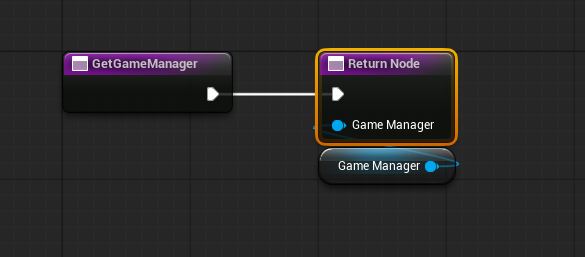
- Add Output as
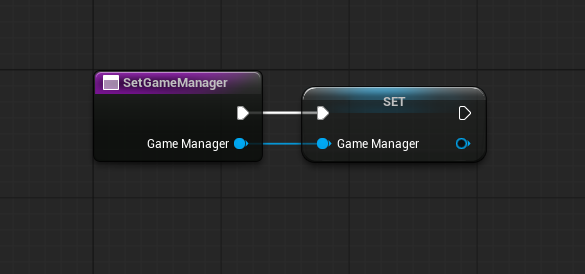
GameManagerwith BP Game Manager > Object Reference as the type.
- Add a Function named
SetGameManagerand set up as below:
- Add Input as
GameManagerwith BP Game Manager > Object Reference as the type.
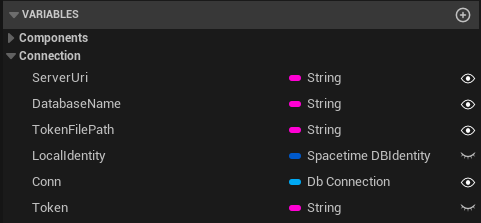
Next, open and update BP_GameManager to add the following
Variables:
- Add
ServerUri- Change Variable Type to String
- Check Instance Editable
- Change Category to
Connection - Change Default Value to
127.0.0.1:3000
- Add
DatabaseName- Change Variable Type to String
- Check Instance Editable
- Change Category to
Connection - Change Default Value to
blackholio
- Add
TokenFilePath- Change Variable Type to String
- Check Instance Editable
- Change Category to
Connection - Change Default Value to
.spacetime_blackholio
- Add
LocalIdentity- Change Variable Type to Spacetime DBIdentity
- Change Category to
Connection
- Add
Conn- Change Variable Type to Db Connection > Object Reference
- Check Instance Editable
- Change Category to
Connection
- Add
Token- Change Variable Type to String
- Change Category to
Connection
Continue with BP_GameManager to add the logic, starting with Event
BeginPlay: 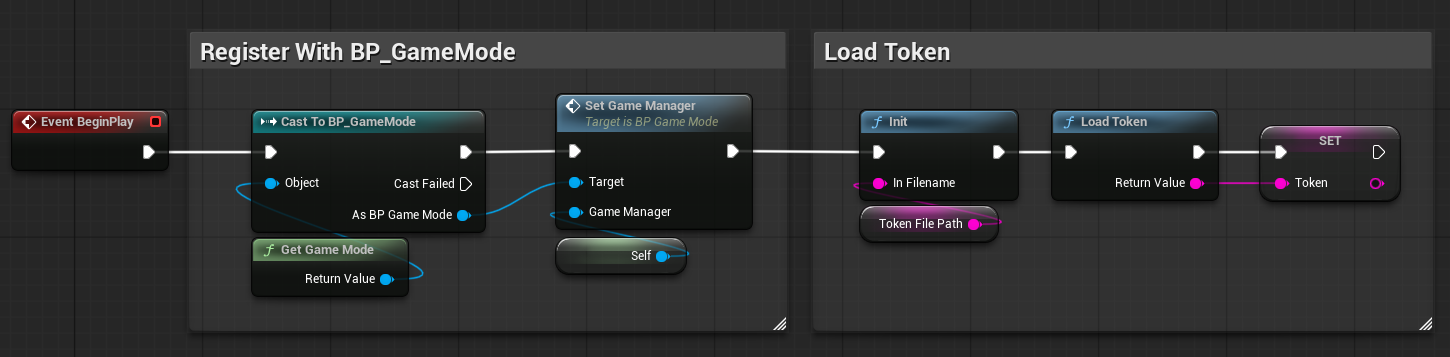
Add Function named BuildConnection: 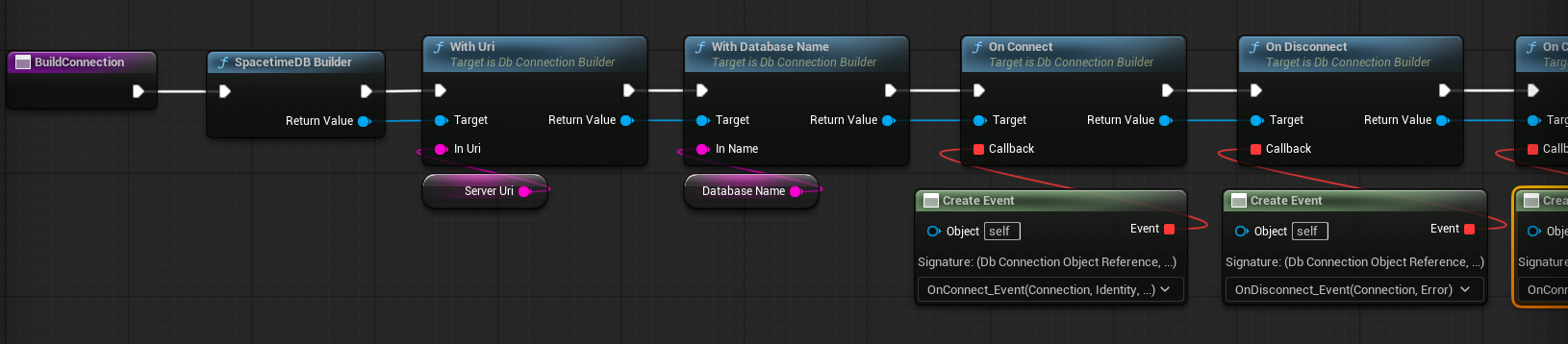
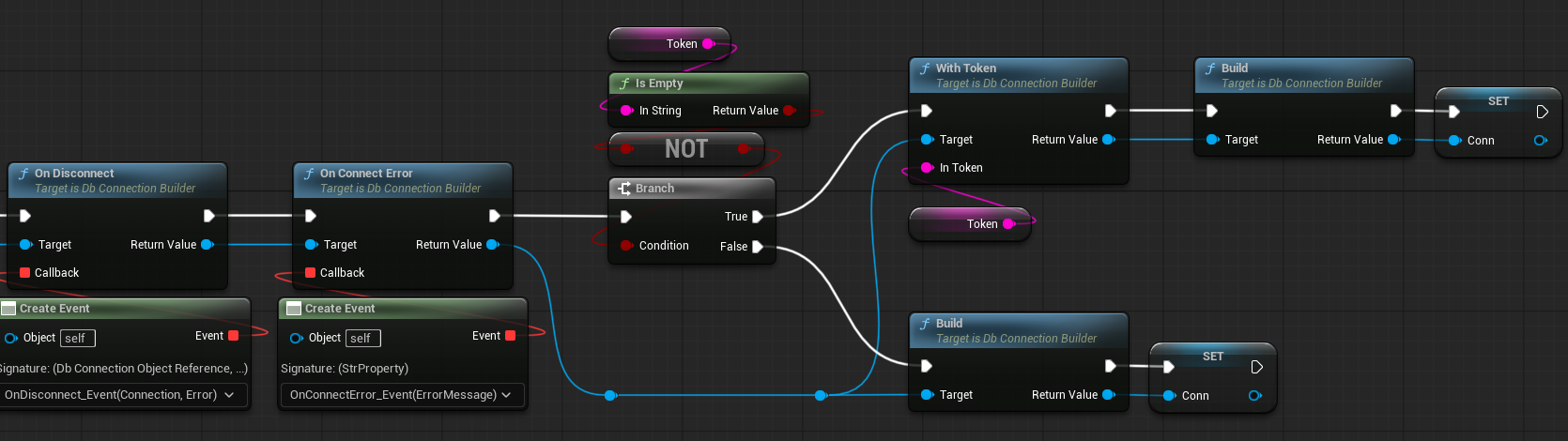
Note: Dragging off the Event pin will provide Event Dispatchers -> Create Event then set Select Function.. to Create a matching event to generate the events on the EventGraph that we’ll fill in soon. The naming scheme we’re using in this tutorial is
<CallbackName>_Event, eg.OnConnect_Event.
Now attach BuildConnection to the end of Event BeginPlay: 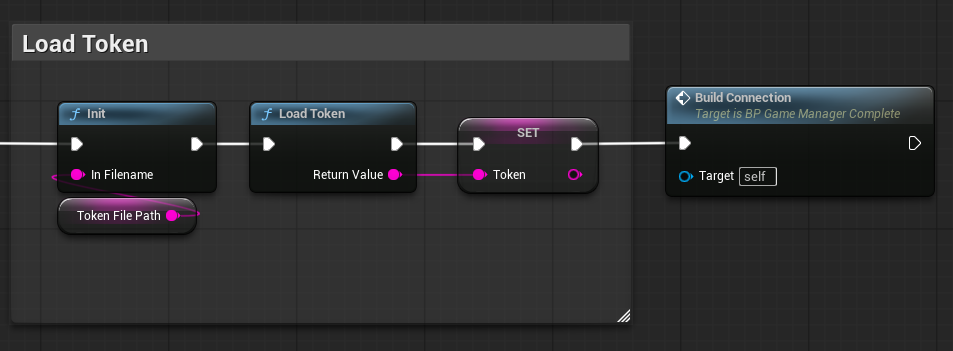
Update the Event EndPlay and Event Tick to the following:
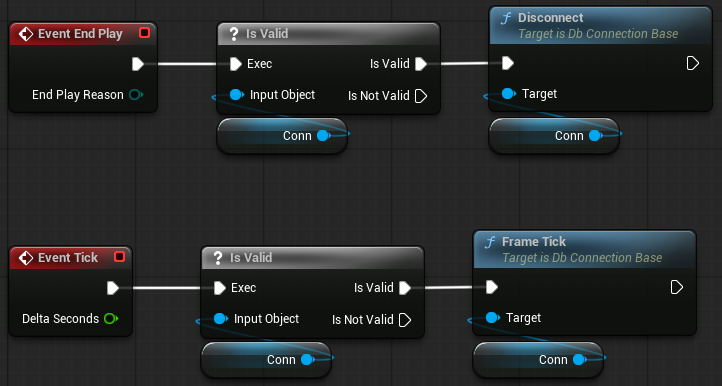
Update the OnConnect_Event: 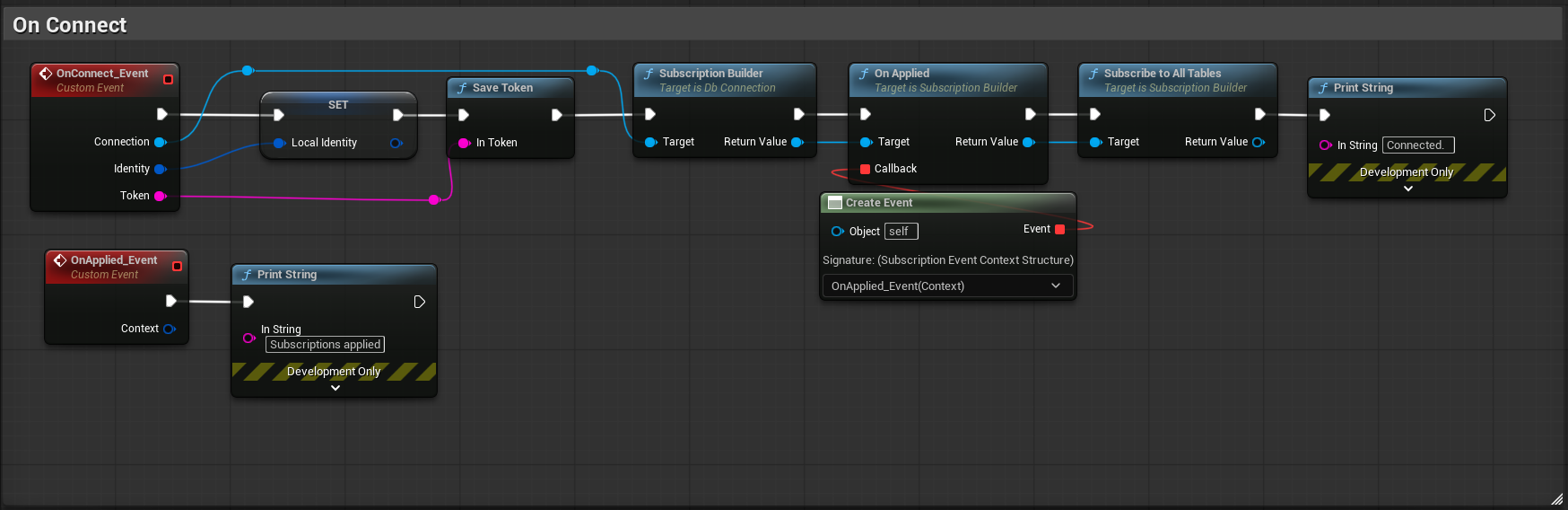
Here we configure the connection to the database, by passing it some
callbacks in addition to providing the ServerUri and DatabaseName to
the connection. When the client connects, the SpacetimeDB SDK will call
the OnConnect_Event method, allowing us to start up the game.
In our OnConnect_Event callback we build a subscription and are
calling Subscribe and subscribing to all data in the database. This
will cause SpacetimeDB to synchronize the state of all your tables with
your Unreal client’s SpacetimeDB SDK’s “client cache”. You can also
subscribe to specific tables using SQL syntax, e.g.
SELECT * FROM my_table. Our SQL documentation
enumerates the operations that are accepted in our SQL syntax.
SDK Client Cache
The “SDK client cache” is a client-side view of the database defined by
the supplied queries to the Subscribe function. SpacetimeDB ensures
that the results of subscription queries are automatically updated and
pushed to the client cache as they change which allows efficient access
without unnecessary server queries.
Now we’re ready to connect the client and server. Press the play button in Unreal.
If all went well you should see the below output in your Unreal logs.
UWebsocketManager::Connect: Connecting to ws://127.0.0.1:3000/v1/database/blackholio/subscribe?
...
Connected.
Subscription applied!
Subscription applied indicates that the SpacetimeDB SDK has evaluated your subscription queries and synchronized your local cache with your database’s tables.
We can also see that the server has logged the connection as well.
spacetime logs --server local blackholio
...
2025-01-10T03:51:02.078700Z DEBUG: src/lib.rs:63: c200fb5be9524bfb8289c351516a1d9ea800f70a17a9a6937f11c0ed3854087d just connected.
Next Steps
You’ve learned how to setup a Unreal project with the SpacetimeDB SDK, write a basic SpacetimeDB server module, and how to connect your Unreal client to SpacetimeDB. That’s pretty much all there is to the setup. You’re now ready to start building the game.
In the next part, we’ll build out the functionality of the game and you’ll learn how to access your table data and call reducers in Unreal.
Last updated Oct 08, 2026